1
Download the client
Go to the download page, pick the version for your device, and get the installer from the official channel.
QUICKQ is a multi-device connectivity service for computers and mobile devices, with clients for Windows, macOS, iOS, Android, and Linux. Use it in three steps: download the client, sign in to your account, and pick a route to connect. After signing in you can see the route list, start a connection with one tap, and manage multiple devices with a single account.
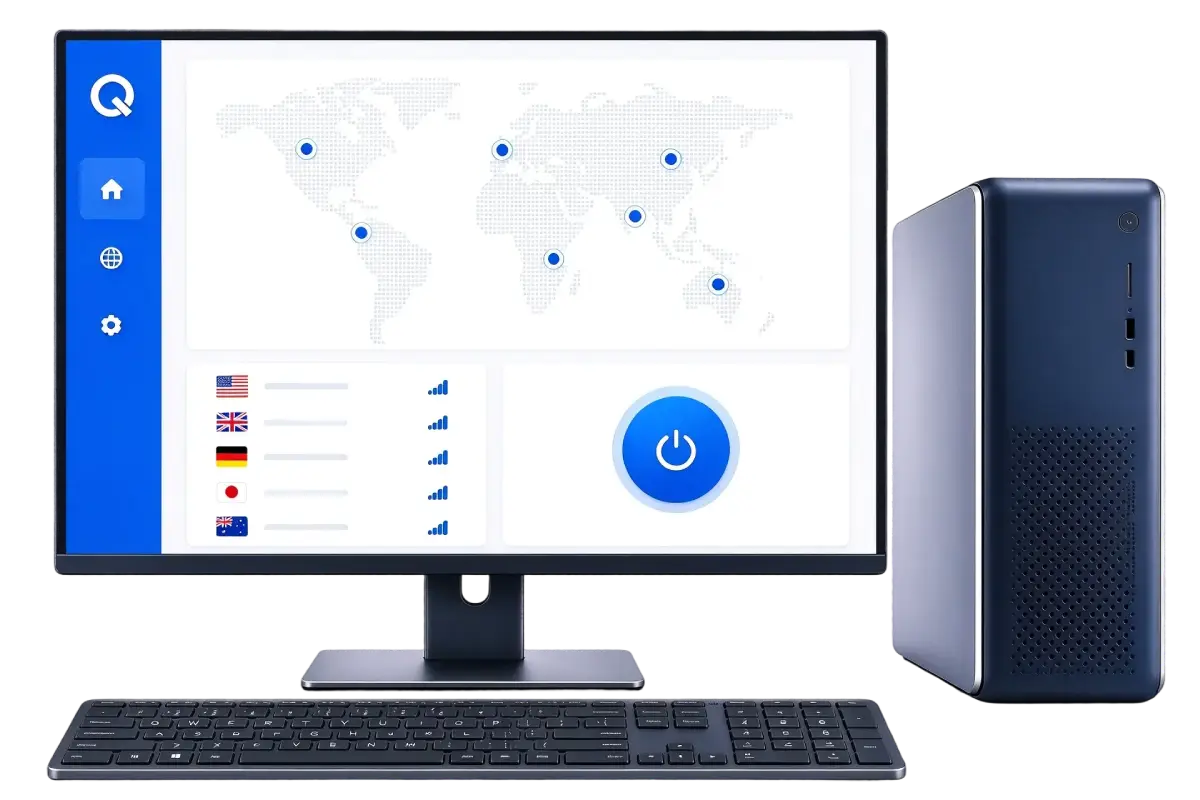
Download the client → sign in → choose a route and connect, three steps to finish.
Go to the download page, pick the version for your device, and get the installer from the official channel.
Open QUICKQ and sign in with your registered account to see the available route list.
Review route status, choose one, and connect. Wait until the status shows connected.

Install and sign in, then connect from the home screen — no digging through settings.
Review available route status and names, and switch as your needs change.
Connecting, disconnecting, and switching all give clear feedback at a glance.
Similar workflows on different devices shorten the learning curve when you switch.
The purpose and protection of required information are explained in the privacy policy.
Tutorials and FAQs cover installation, sign-in, route selection, and connections.
Download the client, follow the tutorials, or check the FAQ — start here.
Get the official Windows 10 / 11 (64-bit) client and prepare installation in three steps.
Six steps from download to connection, with verification and troubleshooting tips.
Account, device, connection, and speed questions, each with causes and steps to try.
Download the client and follow the tutorial to set up QUICKQ.